Product: All TEKLYNX Software
Version: All Versions
To apply a manual update to license, you will need to deactivate the license from the current workstation first. Please ensure the software is closed before proceeding and for this purpose, it is not required to uninstall and reinstall the software.
1. For a Single User License, navigate to Start > All Apps > [Your TEKLYNX Software] > [Your TEKLYNX Software] License Manager. You can also search for License Manager from the Taskbar. For a Network License, navigate to Start > All Apps > [Your TEKLYNX Software] Network License Manager > Network Toolbar > License Upgrade. You can also search for Network Toolbar from the Taskbar.
/msdyn_blobfile/$value)
2. Take note of the Serial Number and select Deactivate.
NOTE: If you have an offline license and the workstation is not connected to the internet, you will be provided with offline deactivation options. We recommend using our website. See the following article for more detailed instructions: How do I deactivate my offline license using the website?
/msdyn_blobfile/$value)
/msdyn_blobfile/$value)
3. You will receive a warning that states that you will no longer be able to use the software on this computer. Click OK to confirm.
/msdyn_blobfile/$value)
4. Click Finish from the deactivation confirmation window.
/msdyn_blobfile/$value)
5. Once license is deactivated, for Single user licenses, launch the License Manager and select Activate. For Network Licenses, launch the Network Toolbar > License Upgrade > Activate.
/msdyn_blobfile/$value)
6. Enter your Serial Number and Password. Click Next.
NOTE: The password is permanent and would have been sent out with the serial number when the license was purchased. If you can't find your activation password, please call Customer Support at +1 414-837-4800 and provide them with your serial number.
/msdyn_blobfile/$value)
7. Enter your company contact information. Check I have read and agree to the privacy policy and then Click Next.
NOTE: If you have an offline license and the workstation is not connected to the internet, you will be provided with offline activation options. See the following article for more detailed instructions: How do I activate my offline license using the TEKLYNX website?
/msdyn_blobfile/$value)
8. Click Finish from the activation confirmation window.
/msdyn_blobfile/$value)
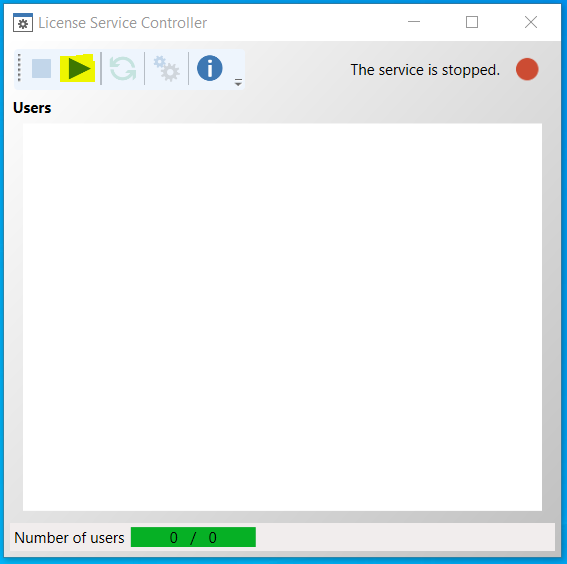
9. Please note for Network licenses, it is required to restart the services after activating. To do so, go to Network Toolbar> License Service Controller > Stop and then Start.
If you have questions if you are on the latest version is, here is a link to the product lifecycle.

